Agent Loop — Batch Task Execution
The Agent Loop lets you run multiple tasks sequentially in a single batch. Each task gets a fresh conversation, the agent implements the work autonomously, and when it marks a task as Done the runner automatically advances to the next one. You can watch the full LLM response for every task — output is preserved, not cleared between tasks.
This is useful when you have a set of related tasks (e.g., "implement the auth module") and want the agent to work through them without manual intervention.
The Agent Loop works with both the built-in LLM provider and external CLI tools (Claude Code, Copilot, Codex, Gemini). See CLI Runners for setup instructions.
How It Works
┌────────────────┐    ┌──────────────────┐    ┌──────────────────────────┐
│  Select Tasks   │───▶│ Dependency Sort   │───▶│  Execute One-by-One      │
│  (or Run All)   │    │ (topological)     │    │  Agent marks Done → next │
└────────────────┘    └──────────────────┘    └──────────────────────────┘
- You select tasks (checkboxes or "Run All To Do")
- Tasks are topologically sorted by dependencies
- For each task in order:
- Conversation memory and file context are cleared (fresh start)
- The full task spec is submitted to the LLM agent
- The agent implements the task, checking off acceptance criteria
- When the agent sets the task status to "Done", the file watcher detects the change and queues the next task
- A progress bar and notifications keep you informed throughout
Before You Start
For best results, create a CLAUDE.md or AGENTS.md file in your project root before running the agent loop. This file gives the LLM agent essential context about your project — build commands, architecture, conventions, and constraints — so it can make better decisions autonomously.
Then open Settings → DevoxxGenie → Prompts and make sure the checkbox "Use CLAUDE.md or AGENTS.md in prompt" is enabled. When checked, the contents of your instructions file are automatically included in every task prompt sent to the agent.
Without a CLAUDE.md / AGENTS.md file (or with the setting unchecked), the agent has no project-specific guidance and may make assumptions about your build system, coding style, or project structure that lead to incorrect implementations.
Running Tasks
Run Selected
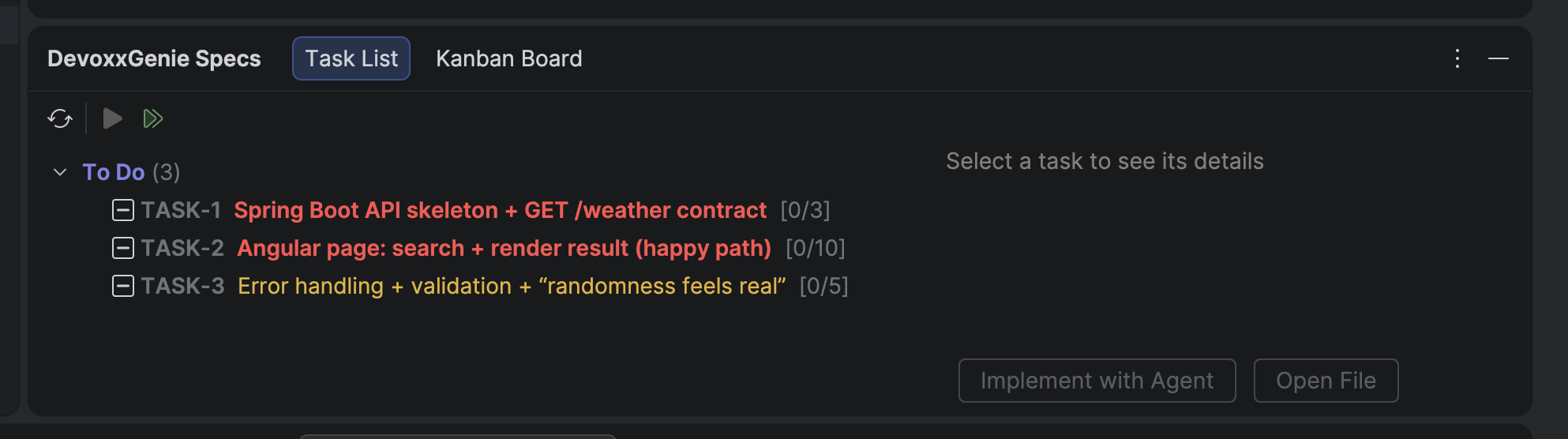
- Open the DevoxxGenie Specs tool window (Task List view)
- Check the boxes next to the tasks you want to run
- Click "Run Selected" in the toolbar
Only checked tasks with status "To Do" are included. Tasks that are already "Done" or "In Progress" are skipped automatically.
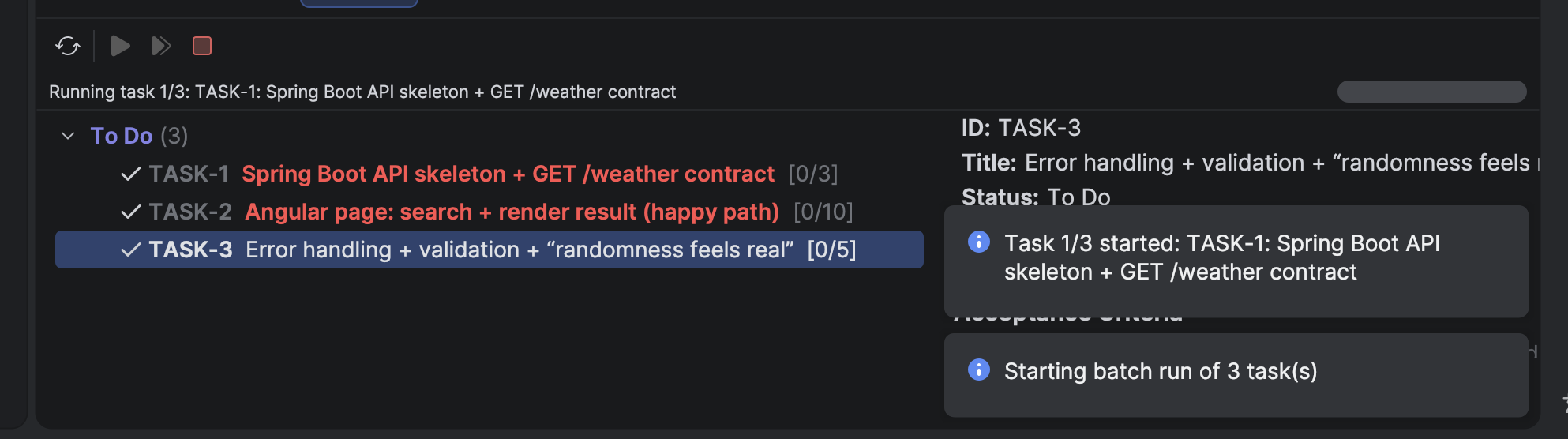
Run All To Do
Click "Run All To Do" in the toolbar to execute every task with status "To Do" in a single batch. No need to check individual boxes — all qualifying tasks are collected and dependency-sorted automatically.
Both modes use the same execution engine and respect dependency ordering.
Dependency Ordering
Tasks with a dependencies field in their frontmatter are automatically sorted before execution using a topological sort (Kahn's algorithm). This ensures prerequisites run first.
How It Works
- Only dependencies within the selected batch create ordering constraints
- External dependencies (tasks not in the batch) are checked at runtime: if the external task is already "Done", the dependency is satisfied; if not, the dependent task is skipped
- Within each dependency layer, tasks are sorted by their
ordinalfield (if set), then by numeric ID
Example
# TASK-3 frontmatter
dependencies:
  - TASK-1
  - TASK-2
If you select TASK-1, TASK-2, and TASK-3 for a batch run, the runner executes TASK-1 and TASK-2 first (in ID order), then TASK-3. The selection order doesn't matter — dependencies determine execution order.
Circular Dependencies
If the dependency graph contains a cycle (e.g., TASK-A depends on TASK-B which depends on TASK-A), the runner detects it before execution begins and shows an error notification. The entire run is aborted — no tasks are executed.
Unsatisfied Dependencies
If a task depends on an external task that is not yet "Done", the task is skipped at runtime with a notification explaining which dependencies are unsatisfied. Other tasks in the batch continue normally.
What Happens During Execution
For each task in the sorted order, the runner:
- Clears conversation state — chat memory and file context are wiped so the agent starts fresh
- Loads the latest task spec — re-reads from disk to pick up any changes
- Checks dependencies — verifies all dependencies are satisfied (completed earlier in this run, or externally marked Done)
- Submits the task to the agent — builds the full spec context and agent instruction, then publishes to the prompt submission topic
The agent then works autonomously:
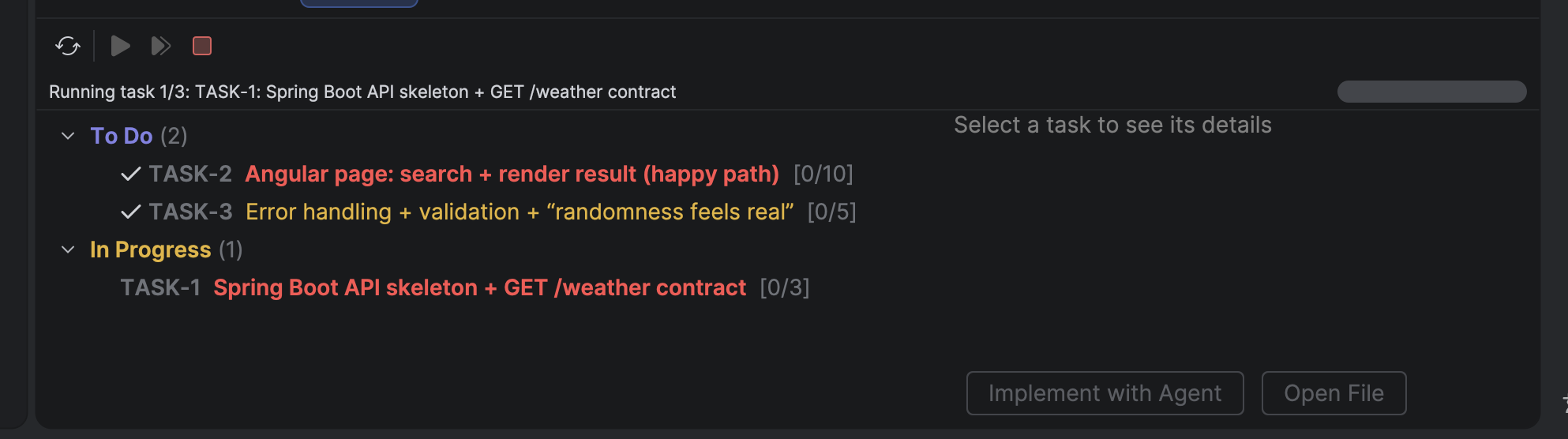
- Sets the task status to "In Progress"
- Reads files, makes edits, runs through the acceptance criteria
- Checks off each acceptance criterion as it's completed
- Appends implementation notes documenting what changed, which files were modified, and why
- Writes a detailed final summary
- Sets the task status to "Done"
Important: Steps 4 and 5 (notes and summary) should happen before step 6 (marking Done). Once the status changes to "Done", the file watcher triggers advancement to the next task. Notes and summaries written after that point are still saved but won't block advancement.
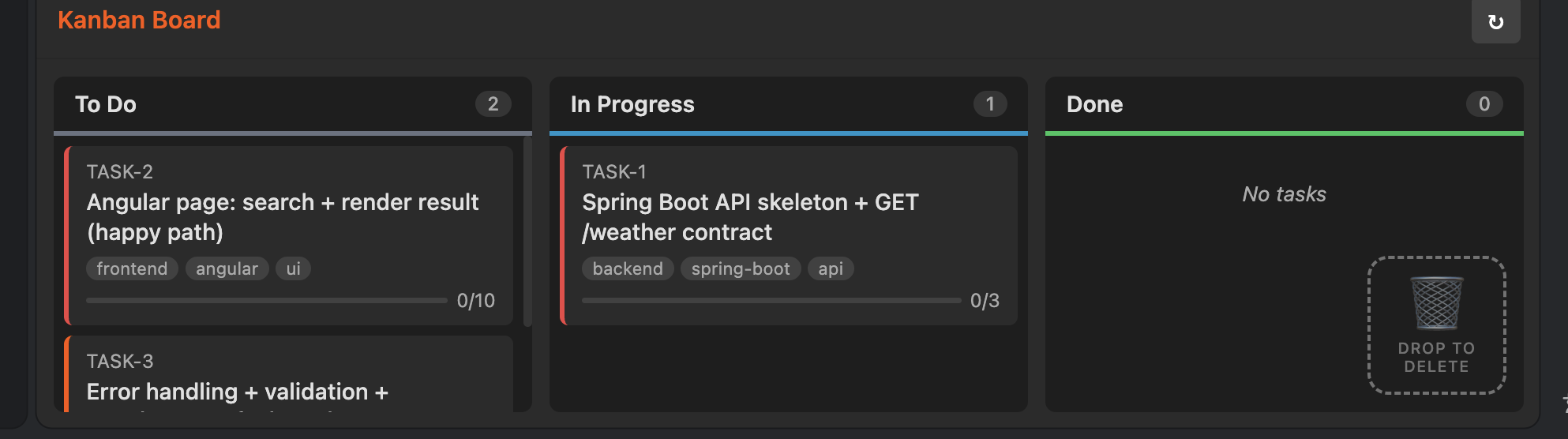
The Kanban Board reflects the same state — TASK-1 has moved to "In Progress" while the remaining tasks stay in "To Do":
The full LLM response is visible for every task. Scroll up in the chat to review earlier task responses — output is not cleared between tasks.
Progress Tracking
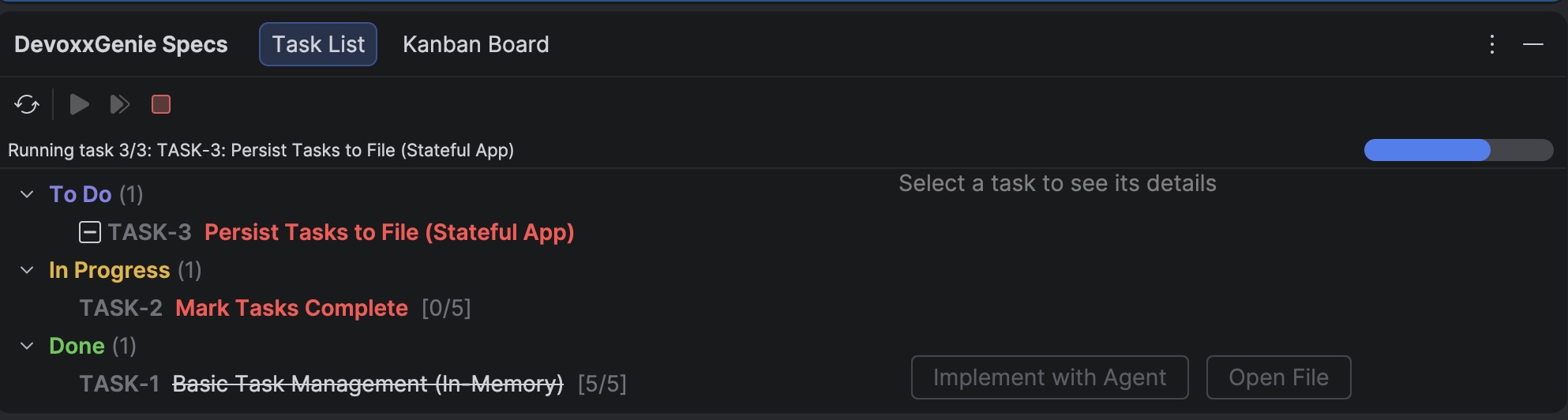
Progress Bar
A progress bar appears at the top of the DevoxxGenie Specs panel during a batch run. It shows:
Running task 2/5: TASK-42: Implement caching layer
████████░░░░░░░░░░░░░░░░░░░░░░ 2/5
When the run finishes, the bar updates to a completion summary and auto-hides after 10 seconds:
Finished: 4/5 completed, 1 skipped
IDE Notifications
Balloon notifications appear for key events:
| Event | Notification |
|---|---|
| Run started | "Starting batch run of 5 task(s)" |
| Task started | "Task 2/5 started: TASK-42: Implement caching layer" |
| Task skipped | "Task TASK-7: Fix auth skipped: Unsatisfied dependencies: [TASK-6]" |
| Run completed | "Batch run complete: 4/5 tasks done" |
| Run cancelled | "Batch run cancelled: 3/5 done, 1 skipped" |
| Run error | "Batch run ended with errors" |
Cancelling a Run
Click "Cancel Run" in the toolbar during a batch run. The runner cancels gracefully:
- The current task finishes naturally — it is not interrupted mid-execution
- No further tasks are submitted after the current one completes
- The progress bar shows the final tally (completed, skipped, total)
- Task checkboxes are cleared in the UI
This ensures the agent's in-flight work (file edits, acceptance criteria updates) is not left in a broken state.
Skipped Tasks
Tasks can be skipped during a batch run for three reasons:
| Reason | What Happens |
|---|---|
| Task file not found | The task's markdown file was deleted or moved between selection and execution |
| Already Done | The task was marked "Done" before the runner reached it (counted as completed, not skipped) |
| Unsatisfied dependencies | The task depends on another task that is neither completed in this run nor marked "Done" externally |
Each skip triggers a notification with the specific reason. The skip count is included in the final completion summary.
Tips for Batch Runs
- Keep tasks small: Tasks with 3–5 acceptance criteria work best. Large tasks with many criteria increase the chance of partial completion or context window exhaustion.
- Use dependencies to enforce order: If task B builds on the output of task A, add
dependencies: [TASK-A]to task B's frontmatter. The runner handles the rest. - Start small: Run 2–3 tasks first to verify the agent produces good results before running your full backlog.
- Review between runs: After a batch completes, review the implementation notes and final summaries before starting the next batch. The agent documents what it changed and why.
- Scroll up for earlier responses: The chat output is preserved for every task in the batch. Scroll up to review the agent's work on earlier tasks.
- Cancel gracefully: Use "Cancel Run" rather than stopping the IDE. The current task finishes cleanly and no work is lost.
- No timeout: The runner does not enforce a time limit per task. The agent controls how long each task takes. If a task appears stuck, cancel the run manually.
Troubleshooting
| Issue | Cause | Solution |
|---|---|---|
| "Runner is already active" | A batch run is already in progress | Wait for the current run to finish or cancel it first |
| "Circular dependency detected" | Two or more tasks depend on each other | Remove the cycle in the task frontmatter dependencies fields |
| "Unsatisfied dependencies" | A dependency task is not in the batch and not yet Done | Either add the dependency task to the batch, or manually complete it first |
| Task stuck in "In Progress" | Agent didn't mark the task as Done | Cancel the run, review the agent's output, and manually set the task status |
| No tasks executed | All selected tasks are already Done or have unsatisfied deps | Check task statuses and dependency chains in the DevoxxGenie Specs |
| Checkboxes cleared after run | Normal behavior | Checkboxes are automatically cleared when a batch run finishes |
| CLI tool fails immediately | Authentication error or wrong path | Check the executable path and env vars in Settings → Spec Driven Dev → CLI Runners, use Test Connection to verify. See CLI Runners. |
| CLI process doesn't exit | Some CLI tools (e.g., Codex) don't self-exit after completing | The runner detects task completion via the file watcher and terminates the process automatically |