CLI Runners
Instead of using the built-in LLM provider, you can execute spec tasks via external CLI tools — such as Claude Code, GitHub Copilot CLI, OpenAI Codex CLI, Google Gemini CLI, or Kimi CLI. This lets you leverage the tool you already use and trust, while DevoxxGenie manages the task lifecycle.
CLI Runners integrate with both Spec-driven Development (single task execution) and the Agent Loop (batch task execution).
How It Works
Each CLI tool is launched as an external process with your task prompt piped in. A Backlog MCP config is auto-generated and passed to the CLI so it can read and update tasks using the same backlog tools as the built-in agent. The output streams live into an IntelliJ Run tool window console.
┌──────────────────┐     ┌──────────────────────┐     ┌──────────────────┐
│  DevoxxGenie     │────▶│  CLI Process          │────▶│  Backlog MCP     │
│  (Task Runner)   │     │  (Claude/Copilot/...) │     │  (task updates)  │
└──────────────────┘     └──────────────────────┘     └──────────────────┘
        │                          │                          │
  Launches process         Implements the task         Sets status to Done,
  with prompt + MCP        using its own tools         checks off criteria
  config via stdin                                     via MCP tools
Supported CLI Tools
| CLI Tool | Prompt Delivery | MCP Support | Default Args |
|---|---|---|---|
| Claude Code | stdin (-p flag) | Auto-generated --mcp-config | -p --dangerously-skip-permissions --model opus --allowedTools Backlog.md |
| GitHub Copilot | stdin | Auto-generated --additional-mcp-config (with @ prefix) | --allow-all |
| OpenAI Codex | Trailing argument | Not supported | exec --model gpt-5.3-codex --full-auto |
| Google Gemini | stdin | Auto-generated --mcp-config | (none) |
| Kimi | --prompt flag | Auto-generated --mcp-config-file | --yolo |
| Custom | stdin | Configurable | (user-defined) |
Codex CLI does not support MCP, so it cannot update task status directly. The task runner detects completion via the spec file watcher and terminates the Codex process automatically.
Setup
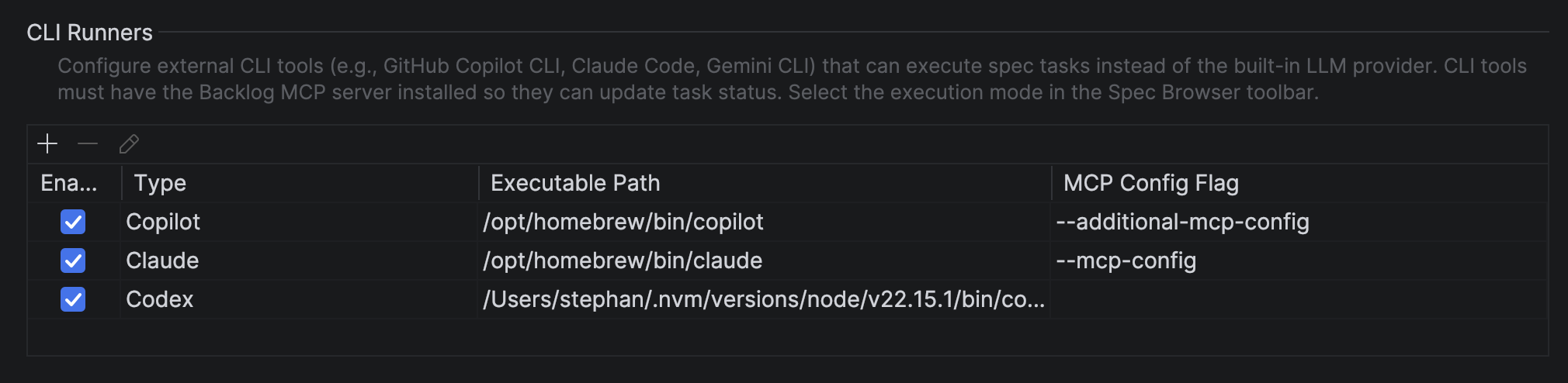
- Open Settings > Tools > DevoxxGenie > CLI/ACP Runners
- Scroll to the CLI Runners section
- Click + to add a new CLI tool
- Select the Type from the dropdown — all fields are pre-filled with sensible defaults
- Adjust the Executable path if your CLI is installed in a different location
- Optionally add Env vars (e.g.,
ANTHROPIC_API_KEY=sk-...) for tools that need API keys when launched from IntelliJ - Click Test Connection to verify the tool is installed and authenticated
- Click OK, then Apply
You can configure multiple CLI tools — for example, Claude for complex tasks and Codex for quick fixes. Switch between them in the toolbar.
Selecting the Execution Mode
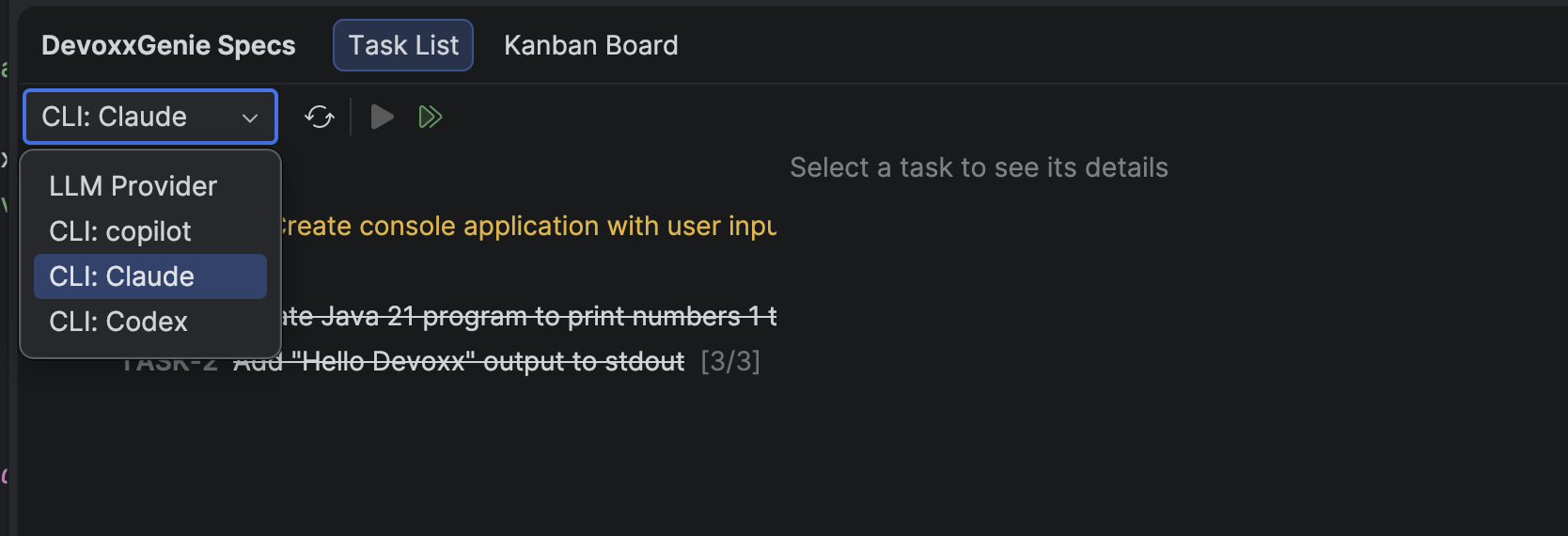
The DevoxxGenie Specs toolbar contains an execution mode dropdown:
- LLM Provider — uses the built-in LLM agent (default)
- CLI: Claude / CLI: Copilot / CLI: Kimi / etc. — uses the configured external CLI tool
The selection is persisted across IDE restarts. When you click Run Selected or Run All To Do, tasks are executed using whichever mode is selected.
Configuration Reference
| Field | Description |
|---|---|
| Type | Preset type (Claude, Copilot, Codex, Gemini, Kimi, Custom). Selecting a type auto-fills the other fields. |
| Executable path | Absolute path to the CLI binary (e.g., /opt/homebrew/bin/claude) |
| Extra args | Command-line arguments passed to the CLI. These are split on whitespace — no shell quoting needed. |
| Env vars | Optional environment variables as KEY=VALUE, KEY2=VALUE2. Useful for API keys not inherited from the shell. |
| MCP config flag | Read-only. The CLI flag used to pass the auto-generated Backlog MCP config file. Set automatically per tool type. |
| Enabled | Toggle to enable/disable a tool without deleting its configuration |
Console Output
When a CLI tool runs, its stdout and stderr stream into the Run tool window in IntelliJ. Each task execution shows:
- A header with the task ID, title, and CLI tool name
- The full output from the CLI tool
- An exit summary with exit code and elapsed time
Chat Mode
CLI Runners aren't limited to spec task execution — you can also use them for interactive chatting. When you open a chat session with a CLI runner selected as the execution mode, your messages are sent directly to the external CLI tool, and responses stream back into the DevoxxGenie chat window. This gives you the full power of tools like Claude Code or GitHub Copilot CLI while staying inside IntelliJ.
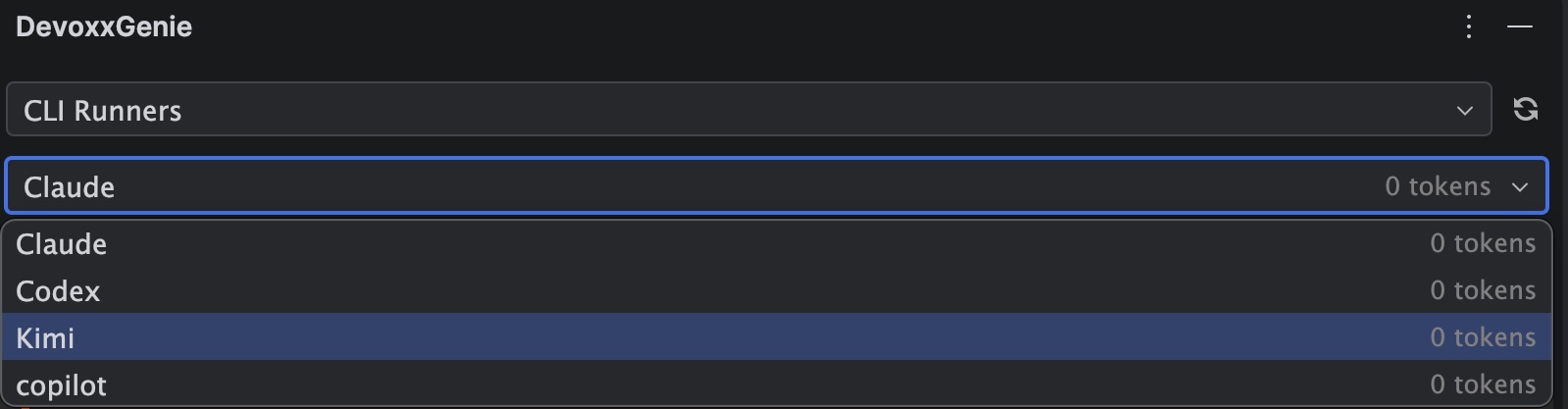
This is useful when you want to ask quick questions, explore ideas, or get code suggestions from your preferred CLI tool without switching to a terminal — all while keeping the conversation history in your IDE. It also means you can leverage your monthly subscription (e.g., Claude Pro, GitHub Copilot) instead of being billed per token through a cloud API, making it a cost-effective way to use premium models directly from DevoxxGenie.
Adding a Custom CLI Tool
If your CLI tool is not in the preset list:
- Select Custom as the Type
- Enter the executable path and arguments manually
- Set the MCP config flag if your tool supports an MCP config file (leave empty if not)
- The prompt is piped via stdin by default — ensure your tool reads from stdin in non-interactive mode
Troubleshooting
| Issue | Cause | Solution |
|---|---|---|
| CLI tool fails immediately | Authentication error or wrong path | Check the executable path and env vars in Settings → Spec Driven Dev → CLI Runners, use Test Connection to verify |
| CLI process doesn't exit | Some CLI tools (e.g., Codex) don't self-exit after completing | The runner detects task completion via the file watcher and terminates the process automatically |
| No output in console | Process started but no stdout | Check that the executable path is correct and the tool is authenticated. Try running the command manually in a terminal |
| MCP tools not available | CLI tool doesn't receive the Backlog MCP config | Verify the tool type is set correctly — MCP config is auto-generated per tool type. Codex does not support MCP |