Event Automations (BETA)
Event Automations is a beta feature that brings Cursor-style intelligent automations to IntelliJ IDEA. It allows AI agents to react to IDE events automatically — reviewing code before commits, debugging test failures, and more.
Overview
Event Automations connects IDE events (triggers) to AI agents (actions). When an event occurs — such as a build failure, a test failing, or a file being opened — the configured agent automatically activates with a tailored prompt, providing contextual assistance without manual intervention.
This turns DevoxxGenie from a reactive assistant (you ask, it answers) into a proactive development partner that watches what you do and offers help at exactly the right moment.
How It Works
IDE Event (trigger)  →  Agent (action)  →  Result (assistance)
─────────────────       ──────────────      ──────────────────
Build Failed         →  Build Fix Agent  →  "Error in UserDao.java:42.
                                             Missing null check. Here's
                                             the fix..."
- An IDE event fires — IntelliJ notifies DevoxxGenie via platform listeners
- The matching agent activates — The configured agent receives the event context (error messages, file contents, stack traces, etc.)
- The agent produces a response — The result appears in the DevoxxGenie chat panel, with actionable suggestions
Each automation can be configured with:
- Enabled/Disabled — Toggle individual automations on or off
- Custom Prompt — Tailor what the agent does when triggered
- Auto-run — Skip the confirmation dialog and run immediately
Settings Panel
Navigate to Settings → DevoxxGenie → Event Automations (BETA) to configure your automations.
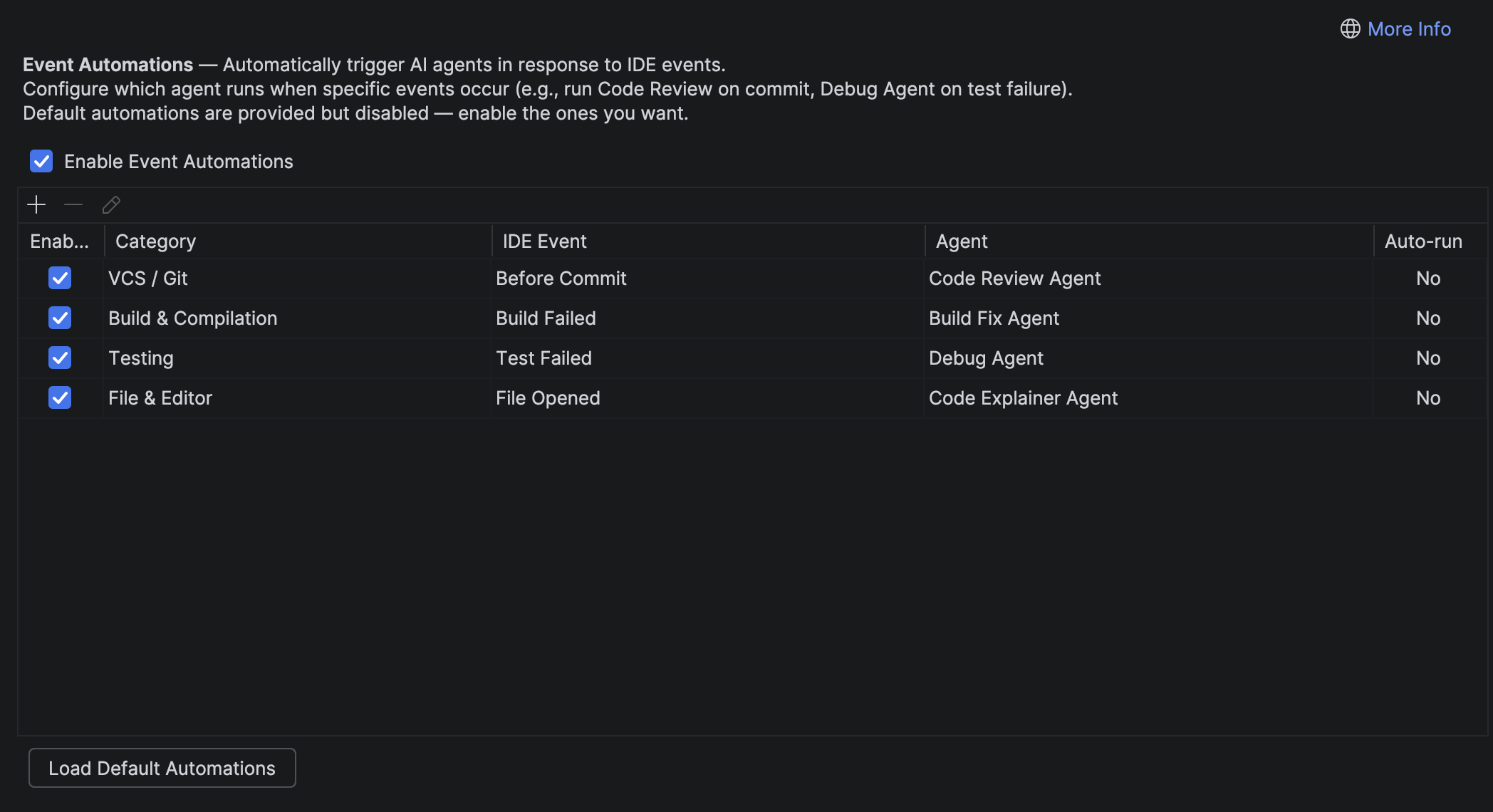
The settings panel provides:
- A master toggle to enable/disable all event automations
- A table listing all configured event-agent mappings with columns for: Enabled, Category, IDE Event, Agent, and Auto-run
- Add/Edit/Remove toolbar to manage mappings
- Load Default Automations button to restore the built-in defaults
Adding an Automation
Click the + button to open the Add Event Automation dialog:
- Select an IDE Event — Choose from the categorized list of supported events
- Select an Agent — Pick a built-in agent or choose "Custom Agent" to define your own
- Customize the Prompt — Edit the agent's prompt to fit your workflow (the default prompt auto-fills when you select a built-in agent)
- Auto-run — Check this box to skip the confirmation dialog
Supported IDE Events
Events are organized into categories that map to natural development workflows:
VCS / Git
| Event | Trigger | Example Use Case |
|---|---|---|
| Before Commit | Fires before a git commit is created | Run Code Review Agent to catch bugs before they're committed |
File & Editor
| Event | Trigger | Example Use Case |
|---|---|---|
| File Saved | Fires when a file is saved | Run related tests automatically |
| File Opened | Fires when a file is opened in editor | Explain unfamiliar code and its dependencies |
Build & Compilation
| Event | Trigger | Example Use Case |
|---|---|---|
| Build Failed | Fires when a build fails with errors | Analyze errors and propose fixes |
| Build Succeeded | Fires after a successful build | Check for deprecation warnings or optimization opportunities |
Testing
| Event | Trigger | Example Use Case |
|---|---|---|
| Test Failed | Fires when a test fails | Debug agent analyzes failure, identifies root cause |
| Test Suite Passed | Fires when all tests pass | Identify coverage gaps in recently changed code |
Run / Debug
| Event | Trigger | Example Use Case |
|---|---|---|
| Process Crashed | Fires when a process exits with non-zero code | Post-mortem analysis of logs and exit code |
Built-in Agents
DevoxxGenie ships with five built-in agents, each designed for a specific class of development task:
Code Review Agent
Best paired with: Before Commit
Reviews code changes for bugs, security issues, and style violations. Includes the full staged diff (before/after content) for line-level review. Provides specific file references and concrete fixes.
"You're introducing a SQL injection in UserDao.java:42. The
queryparameter is concatenated directly into the SQL string. Here's a parameterized version..."
Build Fix Agent
Best paired with: Build Failed
Parses compiler errors, reads the failing source files, and proposes fixes with explanations. Handles missing imports, type mismatches, and ambiguous method calls.
"Build failed: 3 errors. Missing import - added automatically. Type mismatch on line 87 - suggested cast. Ambiguous method call - 2 options shown."
Debug Agent
Best paired with: Test Failed
Reads the stack trace, the source under test, and recent changes to those files to identify root causes and suggest fixes.
"testUserLogin failed: NullPointerException at AuthService:55. Root cause: commit abc123 removed null check in getUserById(). Suggested fix: [diff shown]"
Test Generator Agent
Best paired with: File Saved, File Opened
Generates comprehensive unit tests for new or changed code, including edge cases, boundary conditions, and error scenarios. Follows the project's existing test framework and conventions.
Code Explainer Agent
Best paired with: File Opened
Provides a brief summary of unfamiliar code files — purpose, key methods, dependencies, and architectural context.
"This file handles JWT token validation. Key methods: validate(), refresh(). Called by AuthFilter. Last modified 3 weeks ago."
Custom Agents
Beyond the built-in agents, you can create custom agents for workflows specific to your team or project:
- In the Add Event Automation dialog, select "Custom Agent" as the agent type
- Give your custom agent a name (e.g., "Security Scanner", "API Doc Generator")
- Write a custom prompt that tells the agent exactly what to do
Custom Agent Ideas
| Agent Name | Event | What It Does |
|---|---|---|
| i18n Checker | File Saved | Scans for hardcoded strings that should be internationalized |
| API Doc Sync | File Saved | Updates OpenAPI/Swagger docs when endpoint files change |
| Performance Guard | Test Suite Passed | Compares test durations against baselines, flags regressions |
Default Automations
When you first open the Event Automations settings, DevoxxGenie loads a set of default automations (all disabled by default):
| IDE Event | Agent | Description |
|---|---|---|
| Before Commit | Code Review Agent | Review staged changes before committing |
| Build Failed | Build Fix Agent | Analyze and fix build errors |
| Test Failed | Debug Agent | Debug failing tests |
| File Opened | Code Explainer Agent | Explain unfamiliar files |
Enable the ones you want by checking the Enabled checkbox in the table.
Auto-run vs. Confirmation
Each automation can be configured in two modes:
- Confirmation mode (default): When the event fires, a notification appears asking "Run [Agent Name]?" — you choose to proceed or dismiss
- Auto-run mode: The agent runs immediately without asking. Best for low-risk, high-frequency agents (e.g., Explainer on File Opened)
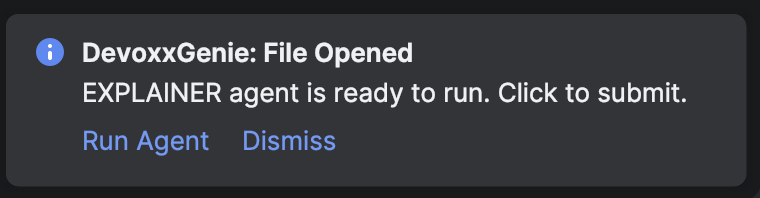
Start with confirmation mode for all agents. Once you're comfortable with an agent's behavior, switch to auto-run for a smoother workflow.
Event Context & Template Variables
When an IDE event fires, DevoxxGenie captures rich contextual information into an EventContext object and injects it into the agent's prompt. You can use template variables in your prompts to access specific parts of this context.
Template Variables
Use double-brace syntax ({{variable}}) in your agent prompts to insert event-specific data:
| Variable | Resolves To | Example Output |
|---|---|---|
{{context}} | Full rendered context block (event info, files, metadata, content) | See Context Block Format below |
{{content}} | Primary text payload (diff, error output, stack trace) | ERROR: cannot find symbol... |
{{files}} | Newline-separated list of affected file paths | src/Main.java\nsrc/Utils.java |
{{event}} | Display name of the IDE event | Build Failed |
{{timestamp}} | ISO-8601 timestamp of when the event fired | 2026-03-06T10:39:35.123Z |
{{meta.KEY}} | Value from the event's metadata map (replace KEY with the metadata key) | {{meta.errorCount}} -> 3 |
Fallback Behavior
If your prompt contains no template variables, the full context block is automatically appended after the prompt text. This means simple prompts like "Fix these build errors" still receive all the context — no {{variables}} required.
Example Prompts
# Using specific variables
Analyze these {{meta.errorCount}} build errors in {{files}} and propose fixes:
{{content}}

# Using the full context block
Review the following changes for bugs and security issues:
{{context}}

# No variables — context is auto-appended
Fix these build errors and explain what went wrong.
Context Block Format
The {{context}} variable renders a structured block like this:
--- Event Context ---
Event: Build Failed
Time: 2026-03-06T10:39:35.123Z
Files:
  - src/main/java/com/example/UserDao.java
  - src/main/java/com/example/AuthService.java
Details:
  errorCount: 3
  warningCount: 1

ERROR: cannot find symbol: method getUserById(String)
ERROR: incompatible types: String cannot be converted to int
ERROR: package com.example.utils does not exist
--- End Context ---
Event-Specific Context Variables
Each IDE event listener populates different fields in the EventContext. Here's what each event provides:
File Opened
| Field | Content |
|---|---|
| filePaths | Path of the opened file |
| meta.fileName | File name (e.g., UserDao.java) |
| meta.fileType | File type (e.g., Java, Python) |
| meta.extension | File extension (e.g., java, py) |
File Saved
| Field | Content |
|---|---|
| filePaths | Path of the saved file |
| meta.fileName | File name |
| meta.lineCount | Number of lines in the document |
Before Commit
| Field | Content |
|---|---|
| content | Full staged diff with before/after file content for each changed file |
| filePaths | All changed file paths |
| meta.changeCount | Number of changed files |
Build Failed
| Field | Content |
|---|---|
| content | Compiler error messages (prefixed with ERROR: ) |
| filePaths | Files that contain errors |
| meta.errorCount | Number of compilation errors |
| meta.warningCount | Number of compilation warnings |
Build Succeeded
| Field | Content |
|---|---|
| meta.warningCount | Number of compilation warnings |
Test Failed
| Field | Content |
|---|---|
| content | Failed test names with error details (prefixed with FAILED: ) |
| meta.failedCount | Number of failed tests |
| meta.totalCount | Total number of tests in the suite |
| meta.suiteName | Name of the test suite |
Test Suite Passed
| Field | Content |
|---|---|
| meta.totalCount | Total number of tests in the suite |
| meta.suiteName | Name of the test suite |
Process Crashed
| Field | Content |
|---|---|
| meta.exitCode | Non-zero exit code |
| meta.executorId | The executor that ran the process (e.g., Run, Debug) |
| meta.runProfile | Name of the run configuration |
To access any metadata field in your prompt, use {{meta.KEY}}. For example:
{{meta.errorCount}}— number of build errors{{meta.suiteName}}— test suite name{{meta.exitCode}}— process exit code{{meta.fileName}}— name of the affected file
MCP Integration
Event Automations can be combined with MCP servers for even more powerful workflows:
- Before Commit + Linear MCP: Auto-update issue status when code is committed
- Test Failed + Slack MCP: Post failure notifications to team channels
- Build Failed + Jira MCP: Create bug tickets automatically
This combination turns DevoxxGenie into a full workflow automation platform that bridges your IDE with external tools and services.
Roadmap
Future enhancements planned for Event Automations:
- More event types — VCS events (after commit, branch switch, after pull), code structure events (method added, interface changed), and project lifecycle events
- Agent chaining — Trigger multiple agents in sequence (e.g., Build Fix -> then re-build -> then Test)
- Conditional triggers — Add filters like "only for files in
src/main/" or "only on branchmain" - Scheduled triggers — Cron-style automations (daily tech debt report, weekly docs check)
- Agent history — View past agent activations and their results
- Import/Export — Share automation configurations across teams
FAQ
Q: Will this slow down my IDE? A: No. The settings panel is purely configuration. Agent activations happen asynchronously and don't block the EDT (Event Dispatch Thread). Auto-run agents execute in background threads.
Q: Can I use any LLM provider? A: Yes. Event Automations use whichever LLM provider and model you have configured in DevoxxGenie's main settings. Local models (Ollama, LMStudio) and cloud models (OpenAI, Anthropic, etc.) all work.
Q: What happens if the same event fires rapidly? A: For events like File Saved, the agent waits for a brief pause before activating to avoid duplicate activations.
Q: Can I have multiple agents for the same event? A: Yes. You can add multiple mappings for the same IDE event, each with a different agent. They will execute in the order listed.
Q: What if the DevoxxGenie tool window isn't open? A: The tool window is automatically activated when an event automation fires, ensuring the prompt is always delivered to the chat panel.