One Key, Every Provider: Cloudflare AI Gateway Comes to DevoxxGenie

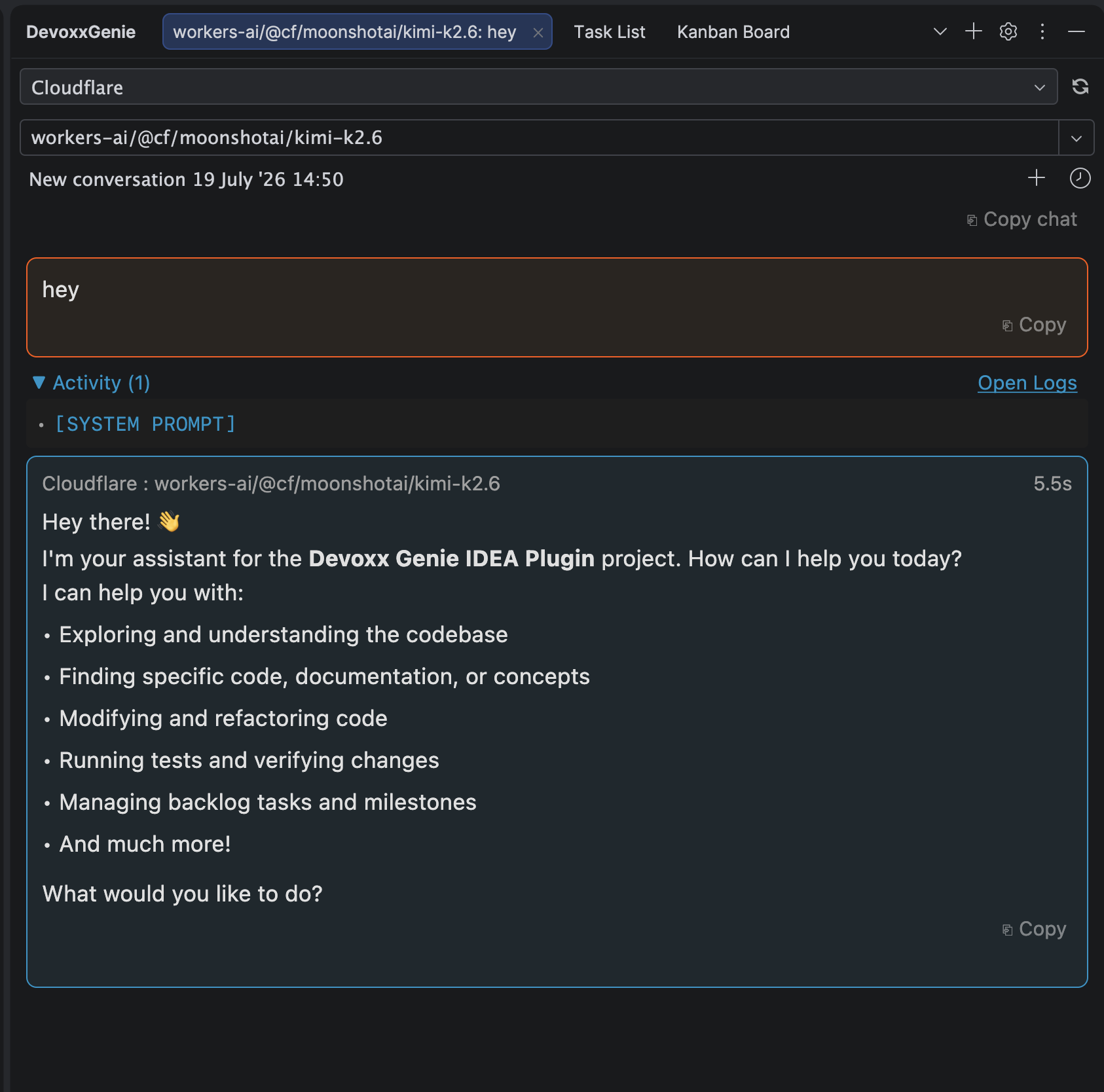
Cloudflare AI Gateway sits in front of your LLM providers and gives you one place to route, cache, rate-limit, and observe every request - across OpenAI, Anthropic, Google, Workers AI, and more. Starting with DevoxxGenie v1.10.0, you can point the plugin straight at your gateway and use any model behind it, without leaving your IDE.
No per-provider setup inside the plugin. One Cloudflare token, your account ID, a gateway name - and you're talking to whatever you've configured behind the gateway.
Why route through a gateway?
Talking to providers directly is fine until you want to see what's happening. Cloudflare AI Gateway adds a control plane on top of the models you already use:
- One endpoint for many providers - OpenAI, Anthropic, Google, Groq, Workers AI, and dozens more, all reachable through a single OpenAI-compatible URL.
- Caching of identical requests, so repeated prompts don't cost you twice.
- Rate limiting and spend controls you own, not the provider's.
- Analytics and logs for every request - latency, tokens, cost - in the Cloudflare dashboard.
- Bring Your Own Keys (BYOK) - your provider keys live in Cloudflare, not scattered across tools.
DevoxxGenie now plugs into all of that as a first-class provider.
How authentication works
DevoxxGenie uses Cloudflare's single-token (BYOK) model. You give the plugin one thing - your Cloudflare API token - and it's sent as Authorization: Bearer. The downstream provider keys (your OpenAI key, Anthropic key, and so on) stay stored in your Cloudflare dashboard, where the gateway injects them for you.
That means you never paste an OpenAI or Anthropic key into DevoxxGenie for this provider - Cloudflare holds them. One token in the plugin, every provider behind the gateway.
Getting started takes under 2 minutes
- Create (or reuse) a gateway in the Cloudflare AI Gateway dashboard. A gateway named
defaultis created automatically on first use. - In the Cloudflare dashboard, store the provider API keys you want to use (BYOK).
- Generate a Cloudflare API token at dash.cloudflare.com/profile/api-tokens.
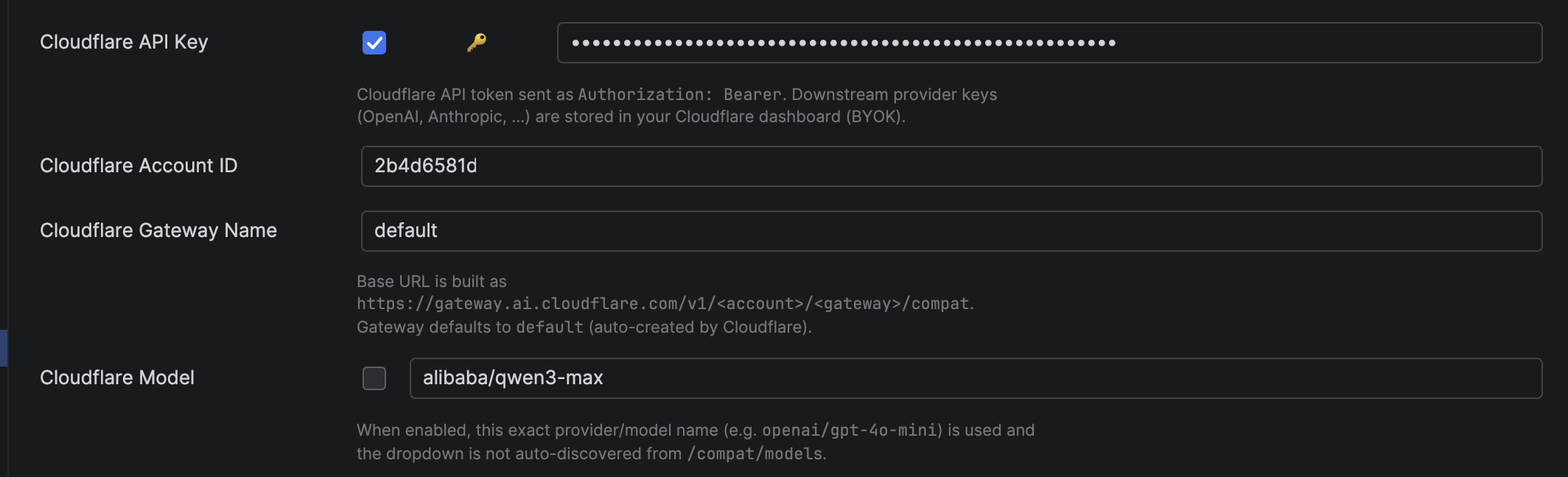
- In DevoxxGenie, open Settings → LLM Providers, enable Cloudflare, and fill in:
- Cloudflare API Key - your Cloudflare API token
- Cloudflare Account ID - your account identifier
- Cloudflare Gateway Name -
default, or the name of a gateway you created
- Pick a model from the dropdown and start chatting.
Under the hood DevoxxGenie assembles the OpenAI-compatible base URL for you:
https://gateway.ai.cloudflare.com/v1/<account-id>/<gateway>/compat
You never type that URL - the three fields build it. The plugin then reuses the same battle-tested OpenAI-compatible client path as our other cloud providers.
Models are auto-discovered
DevoxxGenie asks your gateway's /compat/models endpoint what's available and populates the dropdown for you - so you always pick from models that actually exist on your gateway. Cloudflare uses a provider/model naming scheme, so you'll see IDs like:
openai/gpt-4o-minianthropic/claude-4-5-sonnetworkers-ai/@cf/meta/llama-3.3-70b-instruct-fp8-fastmoonshot/moonshotai/kimi-k2.6
Want to pin one exact model instead? Enable the Cloudflare Model override and type the exact provider/model name - the plugin then uses it verbatim and skips discovery. Handy for scripted setups or when you only ever use one model.
Clear errors when something's off
Gateways can be picky - a model that isn't configured, a provider key you haven't stored yet. Instead of dumping Cloudflare's raw JSON error at you, DevoxxGenie translates it into something you can act on:
Cloudflare AI Gateway couldn't run model
azure-openai/kimi-k2.6(error 2005: Failed to get response from provider). This usually means the model isn't available on your gateway, or its provider isn't configured. Pick a model from the dropdown (auto-discovered from your gateway), or add that provider's API key in your Cloudflare AI Gateway dashboard.
No stack-trace archaeology - just what went wrong and what to do next.
A quick tip on Workers AI
If you want to try the gateway before wiring up any BYOK keys, reach for a Workers AI model like workers-ai/@cf/meta/llama-3.3-70b-instruct-fp8-fast. Those are Cloudflare's own hosted models and bill to your account directly - a great way to confirm everything is connected end-to-end.
Learn more
- Cloudflare AI Gateway - product overview
- AI Gateway - get started
- OpenAI-compatible (
/compat) chat completions
One token, your whole gateway, right inside IntelliJ IDEA. Enjoy! ⚡